WISEflow Guidance for Reviewing

Introduction
Welcome to the WISEflow Reviewing Guidance webpage. This page provides comprehensive resources to help you review and moderate exam submissions using WISEflow. Below, you'll find instructional videos and a PDF manual to assist you in the reviewing process.
Whether you are new to WISEflow or looking to enhance your reviewing skills, these resources will guide you through each step of the moderation process.
All Reviewers (moderators) can:
- View candidates enrolled in an assessment by candidate number.
- Check if a candidate has submitted their work.
- Access Turnitin similarity reports.
- View all marks submitted by markers.
- See all markers' comments and annotations in the shared summary.
- Print out annotated submissions individually.
- Add comments and annotations.
Internal Reviewer (Usually the Unit Lead) Will be able to finalise the grades and submit the grades leading to the closure of the marking process.
Getting Started
Account Setup and Logging into WISEflow:
The Exams Team will set up your WISEflow account for you using your UOB email address. If you are unable to log into WISEflow, please contact the Exams Team at Exams@beds.ac.uk
To log in to WISEflow, please follow these steps:
- Open your web browser and go to europe.wiseflow.net/login
- Click on "Search for your institution" and type in 'Bed' for Bedfordshire.
- Select Bedfordshire from the list.
- Click the Microsoft button and log in with your university email address (firstname.surname@study.beds.ac.uk).
- Enter your password, which is the same as the one you use to access BREO.
- If you have forgotten your password, you will need to perform a Password Reset.
Key Elements in WISEflow
Here are some key areas:
- Flows: The flow serves as the foundational element in WISEflow, where you begin by adding students, exam papers, and markers. All these components are integrated within the examination flow and overseen by the exam team. In WISEflow, the assessment and examination process is referred to as a 'flow'.
- Stages of a Flow:
- Flow Initialization: This stage indicates that the flow exists within the system but is not yet ready for student participation.
- Open for Participation: At this point, the flow is open for students to interact with. Students can engage with the flow and submit their exam answers.
- Marking Period: This stage signifies that the exam is ready for marking. Assessors can now mark the exams, and reviewers will review all grades and submit the final grades.
- Flow Completion: The flow has ended. Students can return to the flow page to collect any feedback that has been shared.
WISEflow Roles and Responsibilities:
- Role-Based System: WISEflow operates on a role-based system. On the WISEflow homepage, you’ll see various roles, each with specific responsibilities. Under each role’s tab, you’ll find a set of tools tailored to the tasks required at that stage of the examination process.
Understanding the different roles in WISEflow is crucial for efficient exam management.
Here are the roles and their responsibilities:
- Participant: Any student who sits an exam.
- Author: The individual who writes the exam paper.
- Assessor: The marker who marks the student’s exam paper.
- Co-assessor: The second marker, called a co-assessor, who marks the exam paper.
- Reviewer: The person who moderates the final grades, reviews the grading/marking, and submits the grades.
- Reviewer (Internal): Typically, the unit lead who confirms and submits the marks.
- Reviewer (External): An external examiner who reviews the grades. (They will need a UOB email address)
- Manager: Individuals who assist in the administration of an exam (This is the exams team).
Types of Exams in WISEflow
In WISEflow, you can create various types of exams to suit different assessment needs. Here are the main types:
- FLOWassign Exams (EX-Written): Students download the exam paper, write their answers in a word document and convert this into a PDF which they must upload and submit into WISEflow However, this method is being phased out in favor of in-text typing directly in WISEflow.
- FLOWlock Exams (EX-Written): Students access the exam questions and write their answers directly in the WISEflow system. The “lock” element refers to the lockdown browser used for onsite exams. At the University of Bedfordshire, we have been piloting the use of this feature without the lockdown browser for online remote exams. This allows students to type within the WISEflow in-app editor, reducing submission issues.
- FLOWmulti Exams (CBE/MCQ/Short Answer Qs): FLOWmulti exams are designed and built directly in WISEflow. The platform offers over 50 different interactive item types, ranging from basic multiple-choice, short answer, or open-ended question responses to complex mathematical evaluation methods. Students provide their responses directly within WISEflow.
Key Features for Reviewers in WISEflow
WISEflow offers a range of features to support the review and moderation process:
- Basic Access: Allows reviewers to view submissions and general flow information.
- View Marking Information: Provides access to detailed marking information, including assessor comments and rubric scores.
- Decide Final Grades: Enables reviewers to finalize grades, ensuring all assessments are fair and consistent.
THE NEW MARKING TOOL
Video tutorials on Reviewing (NEW MARKING TOOL)
Explore our video tutorials to get a clear understanding of the marking process especially reviewing in WISEflow using the new WISEflow new marking tool.
The created videos will demonstrate what both the Unit Lead (internal reviewer) and the External Examiner will see when reviewing exams in WISEflow.
PDF Manuals on Reviewing in WISEflow (New Marking Tool)
Download our updated WISEflow Marking Manuals for step-by-step guidance on using the new marking tool.
These manuals are tailored to the specific exam types supported in WISEflow and cover everything from accessing submissions to finalising marks.
Manual 1: FLOWassign & FLOWlock Exams
This guide is designed for exams where students either upload written responses (FLOWassign) or type directly into WISEflow (FLOWlock). It includes:
- Accessing and navigating submissions
- Using rubrics and annotations
- Entering and submitting marks
Download FLOWassign & FLOWlock Manual [PDF]
Manual 2: FLOWmulti Exams
This manual focuses on FLOWmulti exams, which include multiple-choice, short answer, and interactive question types. It covers:
- Navigating the FLOWmulti interface
- Manual Marking - Item Based marking
- Finalising and submitting grades
Download FLOWmulti Manual [PDF]
Training Materials
Enhance your understanding of the new WISEflow marking system with our updated training resources. These materials are designed to support both new and experienced assessors as they transition to the new tool. These materials are the same ones we use for our training sessions.
Join Us: Stay updated with our latest plans by joining the [STA] UOB Exams Teams group. In our WISEflow training channel, you will find information on when we are holding our WISEflow training sessions. This is a great opportunity to learn how to do authoring in the system and connect with other staff members.
In WISEflow, the roles of a marker and a reviewer have distinct responsibilities and functions:
Assessors (Markers):
- Primary Responsibility: Assessors are responsible for assessing and grading student submissions. They evaluate the work based on predefined criteria and provide grades and feedback.
- Marking Methods: Assessors can work individually or collaboratively with other markers. In collaborative marking, they may need to reach an agreement on the grades before finalising them.
- Feedback: Assessors can provide detailed feedback, including comments and annotations, directly on the submissions.
Reviewer:
- Primary Responsibility: Reviewers oversee the marking process and ensure the consistency and fairness of the grades. They have the authority to approve or adjust the grades submitted by markers.
- Approval Role: Internal Reviewers (usually the unit lead) can resolve grade conflicts and make final decisions on grades.
- Quality Assurance: Reviewers ensure that the marking standards are maintained and that the feedback provided is constructive and aligned with the assessment criteria
Key Differences:
- Decision-Making: Markers assign initial grades, while reviewers have the final say in approving or adjusting these grades.
- Conflict Resolution: Reviewers handle any discrepancies or conflicts in grading between markers.
- Oversight: Reviewers provide an additional layer of quality control to ensure the integrity of the assessment process.
Exam Confirmation Process
Before the examination period, the exam team sends out an exam confirmation exercise.
This is a spreadsheet located in our Exams MS Team site
Colleagues (unit leads/unit coordinators) are invited to input their information, indicating:
- Who will be assessing (Marking student scripts and entering initial grades)
- Who will be reviewing (The quality assurance process, reviewing the marking that has taken place)
- Who the external examiners are for the unit
- Any details of shared marking
Please update the exam confirmation exercise with the correct details of who will be assessing or reviewing.
Then email exams@beds.ac.uk to let us know so we can action the change as the managers in WISEflow.
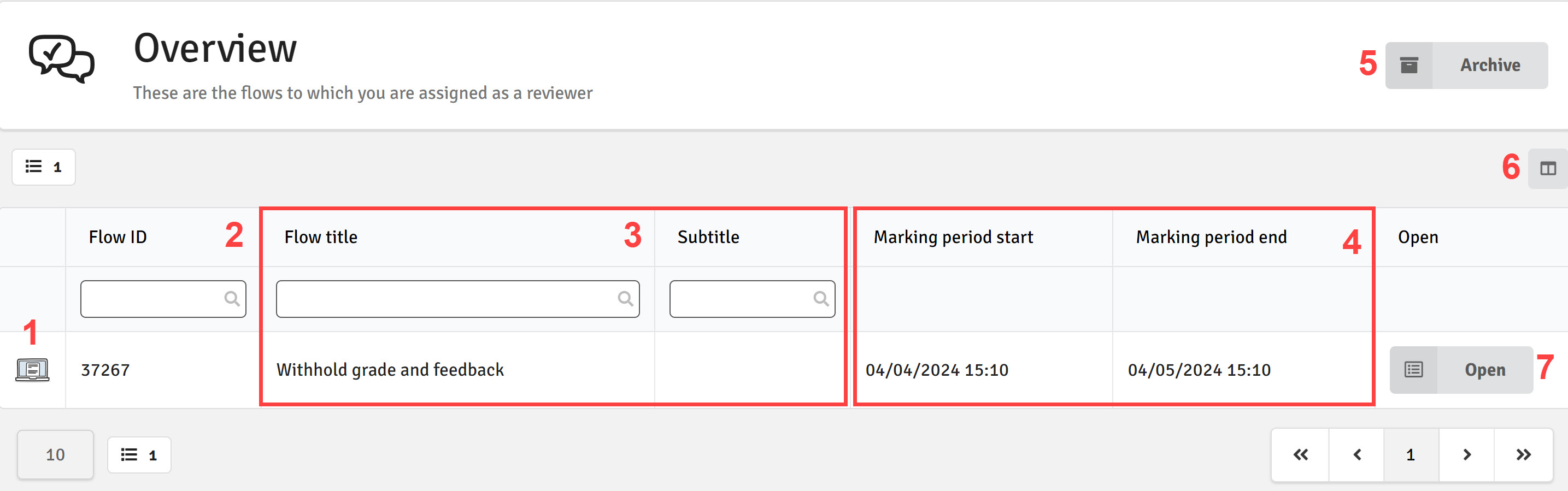
- Icon designates the type of flow e.g. FLOWassign, FLOWlock, and FLOWmulti
- Flow ID is a unique identifier, and is a searchable field
- Flow title and subtitle identify each flow, and is a searchable field
- Start and end dates for the marking period of each flow
- The archive holds all flows that have ended on which the reviewer has been assigned
- Toggle any of the columns shown to be on/off
- Provides access to the flow

- View the assignment and any additional materials provided for assessors.
- Check the start and end dates for the participation period.
- Click to view a list of flow managers (the exam team).
- Use this option to filter the columns.
- Click Offline Marking to build and download a marking package.
- View participant details.
- Click to access the Turnitin similarity report.
- Click User Feedback to open the marking tool.
- View the grades submitted by the markers (assessors).
- Suggested Grades reflect the calculated grade based on all scores from all markers.
- Once submitted, the final grade will appear in the Final Grade column.
- Set All uses the grade scaler to convert scores into percentages.
- Click Submit All to submit all final grades and complete the marking process.

- View the assignment and any additional materials provided for assessors.
- Check the start and end dates for the participation period.
- Click to view a list of flow managers (the exam team).
- Use this option to filter the columns.
- Click Offline Marking to build and download a marking package.
- View participant details.
- Click to access the Turnitin similarity report.
- Click User Feedback to open the marking tool.
- View the grades submitted by the markers (assessors).
- Suggested Grades reflect the calculated grade based on all scores from all markers.
- Once submitted, the final grade will appear in the Final Grade column.
- Set All uses the grade scaler to convert scores into percentages.
- Click Submit All to submit all final grades and complete the marking process.

- View the assignment and any additional materials provided for assessors.
- Check the start and end dates of the participation period.
- Click to view a list of flow managers (the exam team).
- Click to filter the visible columns.
- Select Offline Marking to build and download a marking package.
- View participant details.
- See which participants have submitted their work.
- Click to access the Turnitin similarity report.
- Click User Feedback to open the marking tool.
- View the grades submitted by the markers (assessors).
- View the final grades confirmed by the reviewers.

- View the assignment and any additional materials provided for assessors.
- Check the start and end dates of the participation period.
- Click to view a list of flow managers (the exam team).
- Click to filter the assessor column.
- View flow statistics.
- View participant details.
- See which participants have submitted their work.
- Click User Feedback to open the marking tool.
- View the grades submitted by the markers (assessors).
- View the final grades submitted by the reviewers.
THE OLD MARKING TOOL
PDF Manual
Download our comprehensive WISEflow Reviewing Manual for detailed instructions on reviewing exam papers. This manual covers everything to do with reviewing. Reviewer Guide [PDF]
Training Materials
Access our training materials to further develop your understanding of how to review exam papers and marking done by assessors in WISEflow. These materials are the same ones we use for our reviewing training sessions.
Join Us: Stay updated with our latest plans by joining the [STA] UOB Exams Teams group. In our WISEflow training channel, you will find information on when we are holding our WISEflow training sessions. This is a great opportunity to learn how to review in the system and connect with other staff members.
FAQ
By default, the reviewer has access to the participant's submission, the similarity report (if relevant), and the summary with comments by the assessor(s). Access to scoring information is not available.
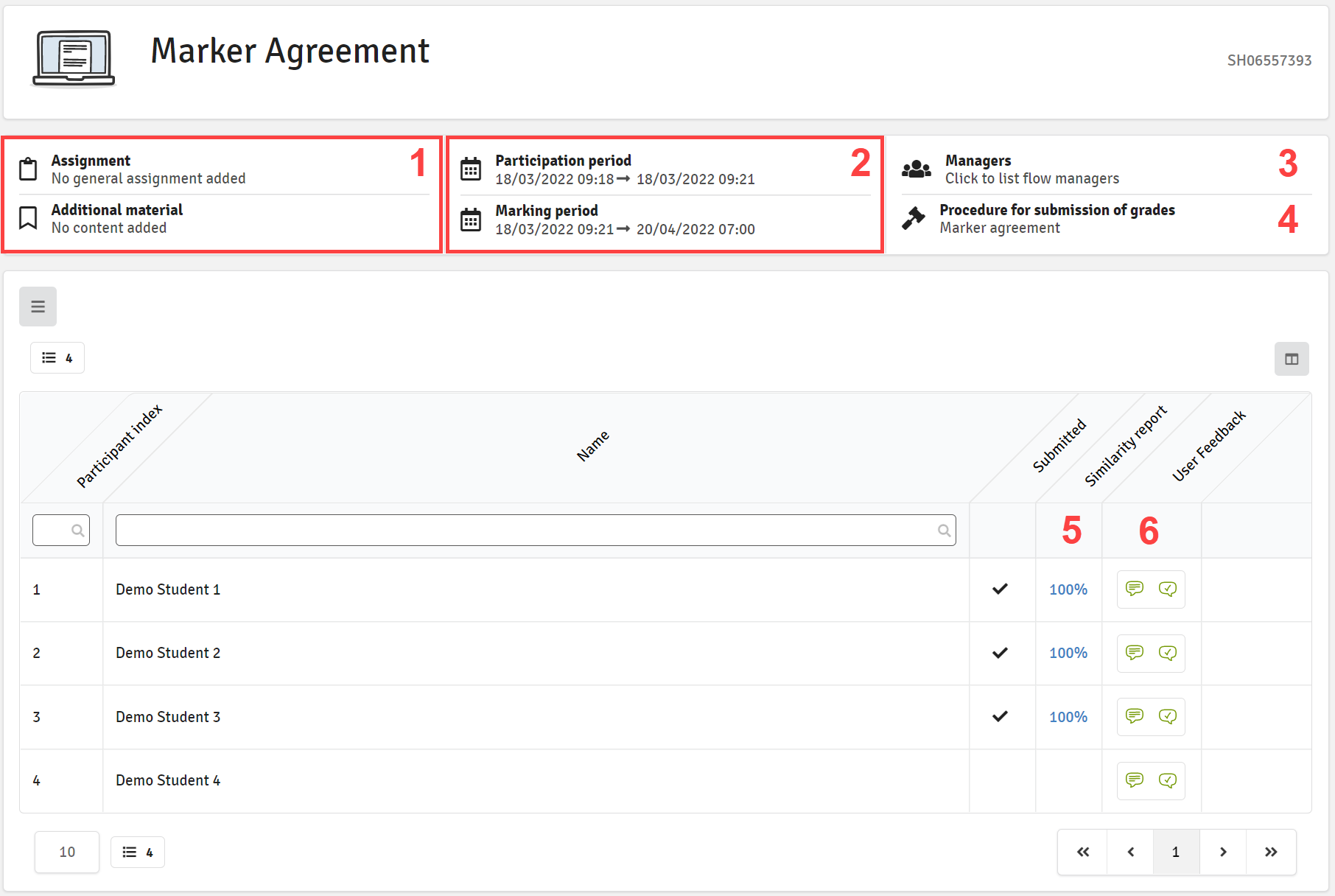
- See the assignment and additional material for assessors
- See start and end dates of the participation and marking periods
- Click to see a list of manager(s) on the flow
- This shows which marking procedure is used on the flow
- This shows the percentage value of the similarity analysis and links directly to the detailed similarity report (only where applicable)
- Access the submission via the marking tool or go directly to the shared summary for the participant
If the manager has allowed the reviewer to see the marking information, they will have access to the same information as above, but with an added column on the flow page that shows the registered (completed) grades.
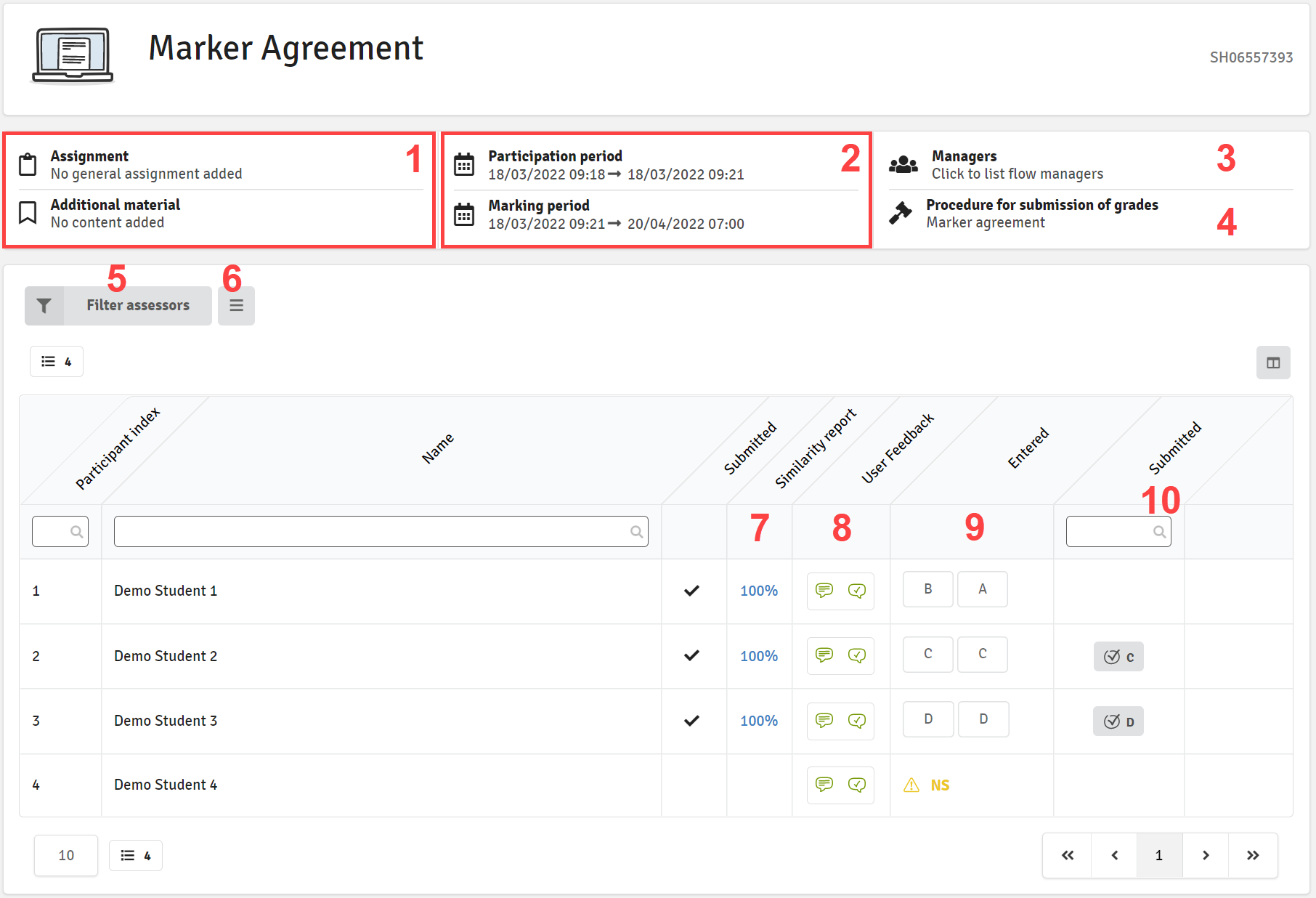
- See the assignment and additional material for assessors
- See start and end dates of the participation and marking periods
- Click to see a list of flow managers
- This shows which marking procedure is used on the flow
- Filter the list by assessors
- Download the submissions as a ZIP file (FLOWassign and FLOWlock only)
- This shows the percentage value of the similarity analysis and links directly to the detailed similarity report (FLOWassign and FLOWlock only)
- Access the submission via the marking tool or go directly to the summary for the participant
- This column shows the grade given by the assessors assigned to the participant
- If several assessors have been assigned to a flow and they have submitted the same grade, this will be shown here
Support & Feedback
- Technical Support: For technical assistance, please contact the exams team at exams@beds.ac.uk
- Training Session: We also offer live training sessions and drop-ins support to help you get the most out of WISEflow, please keep an eye out on Kalldius or our MS Exams Teams site for more information.
- Feedback: We value your feedback! Please email us at exams@beds.ac.uk know how we can improve this guidance page and the WISEflow platform.


