WISEflow Guidance for Assessing (Marking)

Introduction
Welcome to the WISEflow Assessing (marking) Guidance page.
In WISEflow, markers who mark the students work, provide feedback and give grades are also referred to as "Assessors".
This page provides comprehensive resources to help you mark exam scripts using WISEflow. Below, you'll find instructional videos, a PDF manual, and PowerPoint presentations to assist you in the marking process.
Whether you are new to WISEflow or looking to enhance your marking skills, these resources will guide you through each step of the assessment process.
In WISEflow Assessors can:
- View student submissions.
- Enter marks for student submissions.
- Enter marks for specific sections they have been assigned to for a FLOWmulti exam.
- Annotate student submissions to provide feedback.
- Mark students exam scripts using a rubric.
- Download student submissions.
- View statistics for FLOWmulti exams
Getting Started
Account Setup and Logging into WISEflow
The Exams Team will set up your WISEflow account for you. If you are unable to log into WISEflow, please contact the Exams Team at Exams@beds.ac.uk
To log in to WISEflow, please follow these steps:
- Open your web browser and go to europe.wiseflow.net/login.
- Click on "Search for your institution" and type in 'Bed' for Bedfordshire.
- Select Bedfordshire from the list.
- Click the Microsoft button and log in with your university email address (firstname.surname@study.beds.ac.uk).
- Enter your password, which is the same as the one you use to access BREO.
- If you have forgotten your password, you will need to perform a Password Reset.
Key Elements in WISEflow
Here are some key areas:
- Flows: The flow serves as the foundational element in WISEflow, where the exam team begins by adding students, exam papers, and markers. All these components are integrated within the examination flow and overseen by the exam team. In WISEflow, the assessment process is referred to as a 'flow'.
- Stages of a Flow:
- Flow Initialisation: This stage indicates that the flow exists within the system but is not yet ready for student participation.
- Open for Participation: At this point, the flow is open for students to interact with. Students can engage with the flow and submit their exam answers.
- Marking Period: This stage signifies that the exam is ready for marking. Assessors can now mark the exams, and reviewers will review all grades and submit the final grades.
- Flow Completion: The flow has ended. Students can return to the flow page to collect any feedback that has been shared.
WISEflow Roles and Responsibilities
- Role-Based System: WISEflow operates on a role-based system. On the WISEflow homepage, you’ll see various roles, each with specific responsibilities. Under each role’s tab, you’ll find a set of tools tailored to the tasks required at that stage of the examination process.
Understanding the different roles in WISEflow is crucial for efficient exam management.
Here are the roles and their responsibilities:
- Participant: Any student who sits an exam.
- Author: The individual who writes the exam paper.
- Assessor: The marker who marks the student’s exam paper.
- Co-assessor: The second marker, called a co-assessor, who marks the exam paper.
- Reviewer: The person who moderates the final grades, reviews the grading/marking, and submits the grades.
- Reviewer (Internal): Typically, the unit lead who confirms and submits the marks.
- Reviewer (External): An external examiner who reviews the grades. (They will need an active UOB email address)
- Manager: Individuals who assist in the administration of an exam. (This is the exams team).
Types of Exams in WISEflow
In WISEflow, you can create various types of exams to suit different assessment needs. Here are the main types:
- FLOWassign Exams (EX-Written): Students download the exam paper, write their answers in a word document and convert this into a PDF which they must upload and submit into WISEflow. However, this method is being phased out in favour of FLOWlock exams. If colleagues would like their exam to be in this format they must state this on the exam confirmation exercise and let the exam team know.
- FLOWlock Exams (EX-Written): Students access the exam questions and write their answers directly in the WISEflow system. The “lock” element refers to the lockdown browser used for onsite exams only. At the University of Bedfordshire, we have been piloting the use of this feature without the lockdown browser for online remote exams.
- FLOWmulti Exams (CBE/MCQ/Essay/ShortAnswer Qs): FLOWmulti exams are designed and built directly in WISEflow. The platform offers over 50 different interactive item types, ranging from basic multiple-choice, short answer, or open-ended question responses to complex mathematical evaluation methods. Students provide their responses directly within WISEflow. This type of exam can be auto marked as long as correct answers are identified during exam paper creation. Sectional marking can also be set up, allowing markers to be assigned to specific questions. Please speak to a member of the exams team about this before the marking period begins.
Key Marking and Assessment Features in WISEflow
WISEflow offers a range of features to support the marking of exam papers:
- Marking Exam Papers: Navigate to the marking tab and select the exam flow you want to mark. You can use various tools to annotate, comment, and grade student submissions.
- Rubrics: Create and use rubrics to ensure consistent and transparent grading. Please contact the exam team if you are interested in using rubrics.
- Collaborative Marking: Multiple assessors can mark exam scripts this is called co-assessing. This feature supports moderation and ensures fairness in the assessment process.
THE NEW MARKING TOOL
Video tutorials on Assessing (NEW MARKING TOOL)
Explore our video tutorials to get a clear understanding of the marking process using the new WISEflow new marking tool.
PDF Manuals on Assessing in WISEflow (New Marking Tool)
Download our updated WISEflow Marking Manuals for step-by-step guidance on using the new marking tool.
These manuals are tailored to the specific exam types supported in WISEflow and cover everything from accessing submissions to finalising marks.
Manual 1: FLOWassign & FLOWlock Exams
This guide is designed for assessments where students either upload written responses (FLOWassign) or type directly into WISEflow (FLOWlock). It includes:
- Accessing and navigating submissions
- Using rubrics and annotations
- Entering and submitting marks
Download FLOWassign & FLOWlock Manual [PDF]
Manual 2: FLOWmulti Exams
This manual focuses on FLOWmulti exams, which include multiple-choice, short answer, and interactive question types. It covers:
- Navigating the FLOWmulti interface
- Manual Marking - Item Based marking
- Finalising and submitting grades
Download FLOWmulti Manual [PDF]
Training Materials
Enhance your understanding of the new WISEflow marking system with our updated training resources. These materials are designed to support both new and experienced assessors as they transition to the new tool. These materials are the same ones we use for our training sessions.
Join Us: Stay updated with our latest plans by joining the [STA] UOB Exams Teams group. In our WISEflow training channel, you will find information on when we are holding our WISEflow training sessions. This is a great opportunity to learn how to do authoring in the system and connect with other staff members.
FAQ (NEW MARKING TOOL)
In WISEflow, the roles of a marker and a reviewer have distinct responsibilities and functions:
Assessors (Markers):
- Primary Responsibility: Assessors are responsible for assessing and grading student submissions. They evaluate the work based on predefined criteria and provide grades and feedback.
- Marking Methods: Assessors can work individually or collaboratively with other markers. In collaborative marking, they may need to reach an agreement on the grades before finalising them.
- Feedback: Assessors can provide detailed feedback, including comments and annotations, directly on the submissions.
Reviewer:
- Primary Responsibility: Reviewers oversee the marking process and ensure the consistency and fairness of the grades. They have the authority to approve or adjust the grades submitted by markers.
- Approval Role: Internal Reviewers (usually the unit lead) can resolve grade conflicts and make final decisions on grades.
- Quality Assurance: Reviewers ensure that the marking standards are maintained and that the feedback provided is constructive and aligned with the assessment criteria
Key Differences:
- Decision-Making: Markers assign initial grades, while reviewers have the final say in approving or adjusting these grades.
- Conflict Resolution: Reviewers handle any discrepancies or conflicts in grading between markers.
- Oversight: Reviewers provide an additional layer of quality control to ensure the integrity of the assessment process.
Exam Confirmation Process
Before the examination period, the exam team sends out an exam confirmation exercise.
This is a spreadsheet located in our Exams MS Team site
Colleagues (unit leads/unit coordinators) are invited to input their information, indicating:
- Who will be assessing (Marking student scripts and entering initial grades)
- Who will be reviewing (The quality assurance process, reviewing the marking that has taken place)
- Who the external examiners are for the unit
- Any details of shared marking or item based marking (who marks which questions for FLOWmulti)
- Any details of which units need to be scheduled at the same time
- Any details regarding units that require booklets
- Any details of whether remote written examinations are to be run as FLOWassign or FLOWlock
Please update the exam confirmation exercise with the correct details of who will be assessing or reviewing.
Then email exams@beds.ac.uk to let us know so we can action the change as the managers in WISEflow.
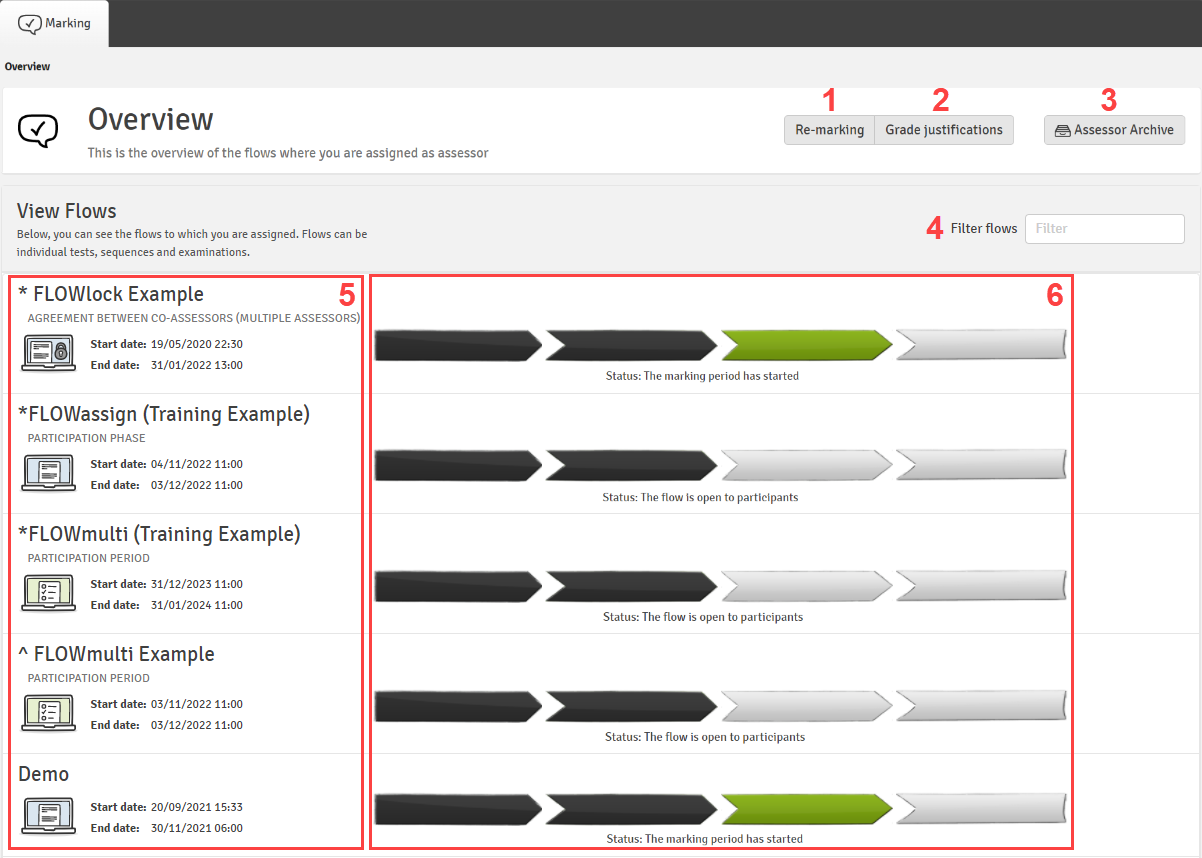
- Access WISEflow's re-marking area.
- Access WISEflow's grade justification area.
- Access the marker archive.
- Type to filter the flow list.
- View flow information. Click any row to enter that flow
- See the status of each flow (assessors are able to interact with the flow once it enters the 3rd chevron stage or the "marking period")
Submissions made to a FLOWassign or FLOWlock will be presented in the marking tool as shown below:

Submissions made to a FLOWassign, and FLOWlock will be presented in the marking tool as shown below:
- Flow Name & Student Name – Displays the current flow and student name (if not anonymised).
- Options Menu – Access functions such as download, print, and settings.
- Full Screen View – Expand the interface to full screen for an immersive experience.
- Page Navigation – Move between multiple pages within the current document.
- Page Display Options – Adjust page transitions, rotate pages, and choose between single or double-page layouts.
- Magnification Presets – Select a preferred zoom level.
- Zoom Controls – Manually zoom in or out of the document.
- Pan Tool – Move around the page, especially useful when zoomed in.
- Text Selection – Highlight and copy text from the document.
- Current Page Indicator – Shows the page currently being viewed.
- Annotation Tools (Basic) – Add annotations using tools listed in item 14.
- Shape Annotations – Draw using freehand, highlight, rectangle, ellipse, polygon, line, polyline, or arrow. Choose from red, blue, black, or green.
- Insert Elements – Add a signature, rubber stamp, or date.
- Annotation Tools (Text) – Use highlight, underline, strikeout, squiggly underline, note, and free text.
- Undo – Revert the last action.
- Redo – Reapply the last undone action.
- Eraser – Remove annotations or shapes.
- Text Search – Find specific text within the current document.
- Annotation Summary – View all annotations in a side pane, sortable by preference.
- Participant Indicator – Shows the index number of the participant whose submission is being viewed.
- Participant Navigation – Move up or down through the list of participants.
- File Navigation – Switch between files submitted by the current participant.
- Navigation Bar Positioning – Move the navigation bar to a preferred location on the screen.
- Close Navigation Bar – Hide the navigation bar when not needed.
Submissions to a FLOWmulti will be presented in the marking tool as shown below:

Submissions made to a FLOWmulti will be presented in the marking tool as shown below:
- Flow Name & Student Name – Displays the current flow and the student’s name (if not anonymised).
- In the View tab, each item of the assignment allocated to you is shown in turn (item-based marking). Note: You may be assigned only specific items rather than the entire assignment.
- If you’ve been assigned the full assignment, you can add inline annotations to any item, including those that have been auto-scored. To do this, select Annotate, then use any of the available tools (annotation tools, shape tool, and insert tool).
- The Submission button provides an overview of the participant’s items, including any appendices they may have attached. Items must be scored before grades can be locked and submitted. You can also select Offline Marking here.
- The Scoring button is where you enter marks for each item.
- Submission Feedback – This is where you provide feedback for individual students.
- This is where you confirm and submit the final grade.
- This shows the scores given for each item.
- This displays the total overall score.
- The Question Statistics window shows responses and scoring data for the item currently being viewed in the marking tool.
- Use the Participant List to navigate between participants.
- Common Feedback – This is where you provide feedback to all students.
- Flow Statistics can be accessed by clicking the Flow Statistics button in the left-hand navigation menu of the marking tool.
Moving between submissions is possible in several different ways.
From the Participants List
The participant list can be accessed from the left-hand navigation pane and displays all the participants to which you have been assigned as an assessor and provides a quick way to move between each submission from inside the marking tool.

From the Navigation Window
It is also possible to move backwards and forwards to the same item for the next submission using the navigation window at the bottom of the screen. Click on the navigation icon in the left-hand navigation pane to open the navigation window.

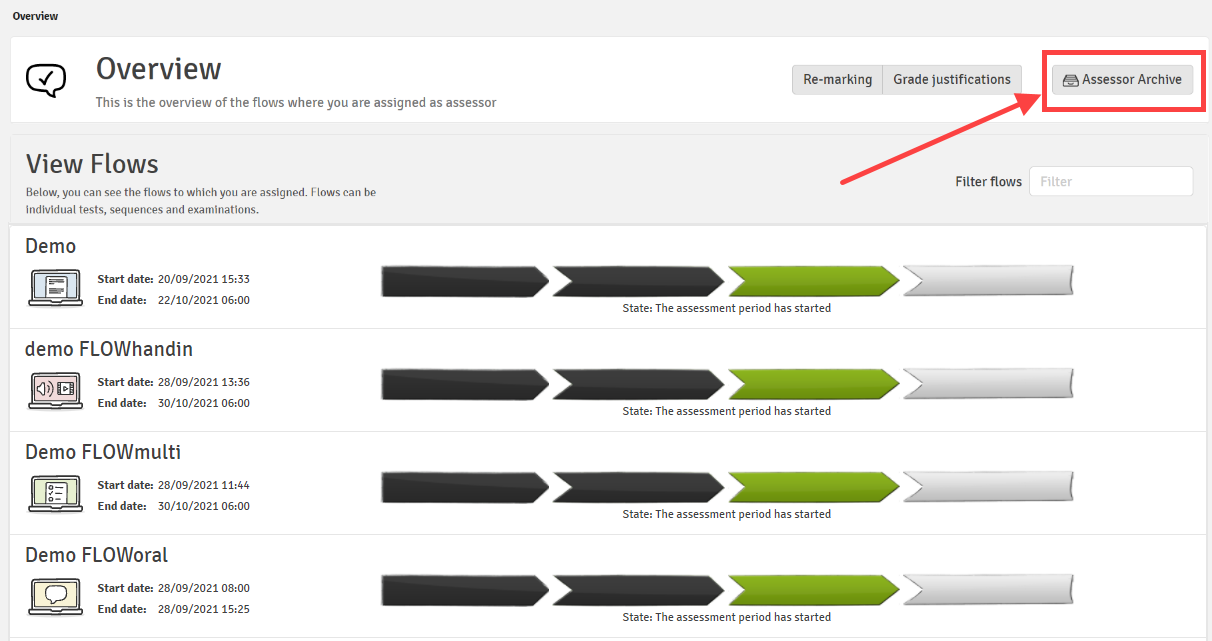
You can find archived flows in the marking archive, available from the marking landing page.
Please note you will not have access to student scripts or the exam papers once the marking period ends.
Please ensure you carry out the marking before the end of the marking period.
If you are looking for specific details about a past examination, please contact the exams@beds.ac.uk
If you require an extension please contact your faculty quality lead for approval and send this to the exams teams.
Submission Feedback: for individual students
From inside the marking tool, click Feedback icon on the header bar. Add your text to the text box and format. Select your preferred sharing option i.e. with participants, co-assessors or any combination. Add a file if you wish and submit. Any previously entered feedback is listed below in the same window. The list of feedback can also be filtered and sorted.

- Open Feedback Panel – Launch the feedback window for the current submission.
- Enter Comments – Provide written feedback specific to the participant’s submission.
- Attach Feedback File – Upload a file to accompany your feedback.
- Set Feedback Visibility – Choose who can view the feedback using the visibility options.
- Feedback Summary – View an overview of the feedback provided for the submission.
Common Feedback: Feedback provided to all participants
From inside the marking tool, click the Common Feedback icon on the left-hand navigation pane. Add your text to the text box and format. Select your preferred sharing option i.e. with participants, co-assessors or any combination thereof (more information on sharing settings in the annotations article).

- Access Common Feedback – Click the speech bubble icon to open the common feedback section.
- Feedback Text Box – Enter feedback intended for all participants who took the exam.
- Attach Files – Upload files to be included with the common feedback for all participants.
- Visibility Settings – Use the drop-down menu to control who can view the common feedback.
- Submit Feedback – Click this button to submit the common feedback to all participants.
- Feedback Overview – Displays a summary of the common feedback provided.
The new marking tool offers 3 different inline annotation options which include
Click Annotate, and choose from the tools available: highlight, underline, strikeout, squiggly underline, note or a text box. Select the area of text you wish to draw attention to and the desired colour. Once the tool and the text has been selected, an annotation box will appear in the right-hand window where you can add your comment.
Click Shapes and choose from the shapes available (see screenshot below) including a free hand tool. Once the chosen shape has been inserted, (and a preferred colour chosen, if applicable), an annotation box will appear in the right-hand window where you can add your comment.
Click Insert and choose to insert a signature, a rubber stamp or today's date. Once the chosen tool has been inserted, (and a preferred colour chosen, if applicable), an annotation box will appear in the right-hand window where you can add your comment.
Sharing on Individual Annotations
- Private: Comments and annotations are visible only to the assessor (This is unless a reviewer has been given the privilege to access all assessment information which includes all comments made by an assessor, even if they are set to private).
- Share with participant: Comments and annotations are visible to the assessor and the participant (upon the release of grades and feedback) only.
- Share with co-assessor: Comments and annotations are visible to the assessor and any co-assessors that are also assigned to the same participant.
- Share with all: Comments and annotations are available to the assessor, and co-assessors that are also assigned to the same participant and the participant (upon the release of grades and feedback).
These options can be configured per annotation in order to offer maximum flexibility to assessors. To change the setting on a single annotation, click on the coloured box in the top right corner to change with whom the comment is to be shared: participant, co-assessor, private or all.
At UOB all comments are automatically set to private as per the institution regulations unless the assessor decides to share them (only if a student has requested feedback).

Rubric-based marking is an advanced marking workflow available with all flow types.
Please contact the exams team at exams@beds.ac.uk in order to ensure rubric marking can be enabled, and please attend a authoring training session to learn how to create and set up rubric based marking.
WISEflow is designed primarily to be used in an online capacity. However, there are some circumstances where a continuous internet connection is not practical or possible for assessors. To cater for such situations WISEflow offers some offline features.
Submissions made to FLOWassign or FLOWlock can be downloaded in bulk in a single zip file and can include a grading spreadsheet or grade sheet. To build your offline marking package, select Offline marking button from the submission Overview button.
If you require any assistance with this please contact the exams team.
Please ensure that once you are connected to the internet, please ensure that you transfer your marking back to WISEflow and submit the grades once done.
Once you have submitted your final grades as a marker, and your co-assessors have also submitted their final grades, the reviewer will then be able to reviewing all the marking and finalise grades.
THE OLD MARKING TOOL
Video tutorials on Assessing
Explore our video tutorials to get a clear understanding of the old marking process.
PDF Manual on Assessing in WISEflow
Download our comprehensive WISEflow Marking Manual [PDF] for detailed instructions on assessing exam papers. This manual covers everything from accessing submissions to finalising marks.
Training Materials
Access our training materials to further develop your understanding of how to assess exam papers in WISEflow. These materials are the same ones we use for our authoring training sessions.
Join Us: Stay updated with our latest plans by joining the [STA] UOB Exams Teams group. In our WISEflow training channel, you will find information on when we are holding our WISEflow training sessions. This is a great opportunity to learn how to do authoring in the system and connect with other staff members.
FAQ (OLD MARKING TOOL)
- Access WISEflow's re-marking area.
- Access WISEflow's grade justification area.
- Access the marker archive.
- Type to filter the flow list.
- View flow information. Click any row to enter that flow
- See the status of each flow (assessors are able to interact with the flow once it enters the 3rd chevron stage or the "marking period")
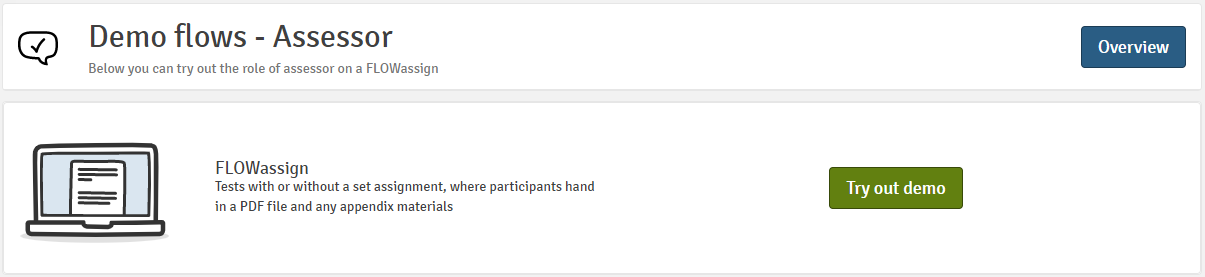
WISEflow provides access to a demonstration flow which will allow assessors to try out some of the marking features available in the system. The demo flow can be accessed from the bottom of the landing page.
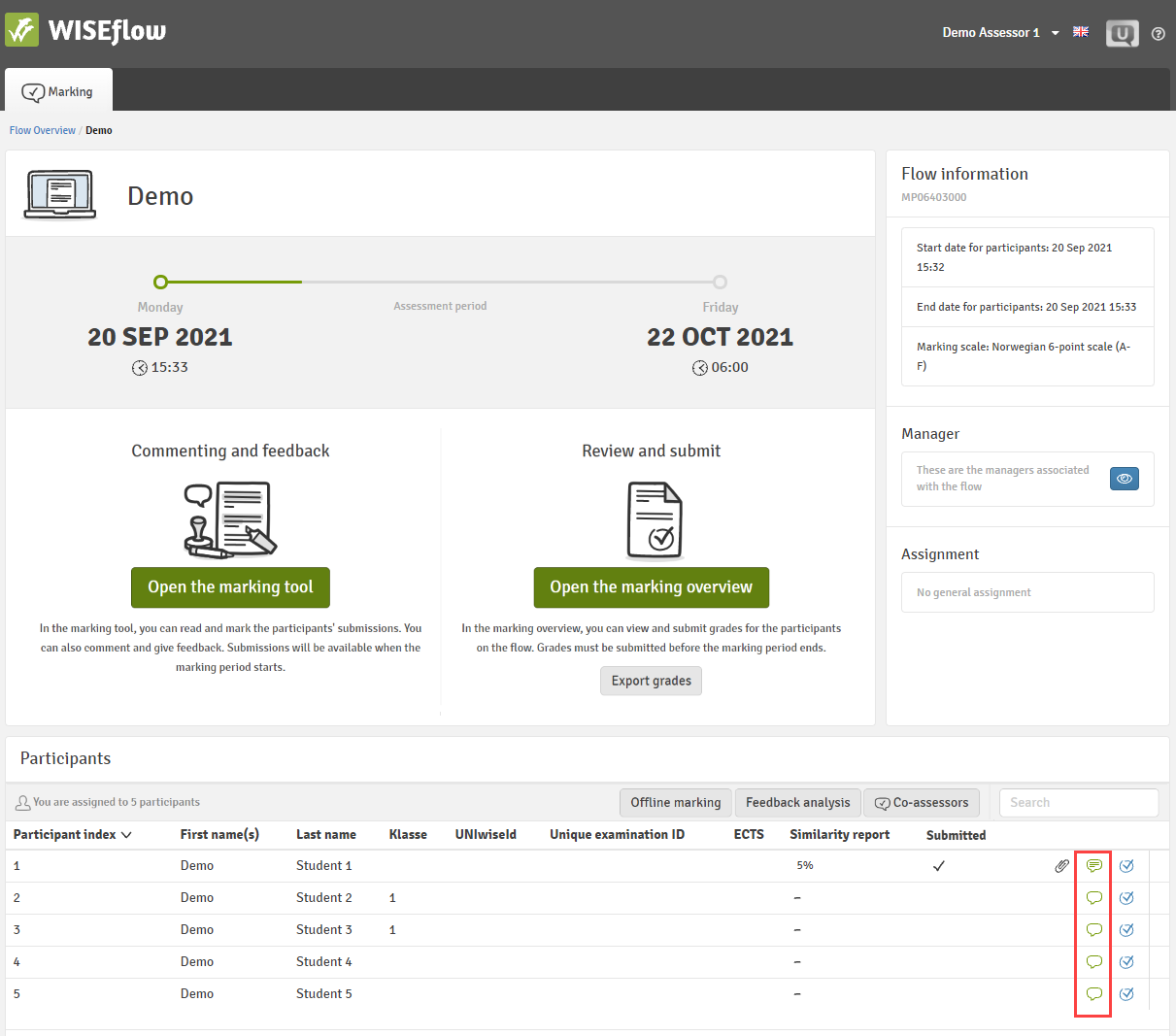
To access the submissions from the flow landing page, navigate into the "open the marking tool"button under the commenting and feedback area.
It is also possible to jump straight to an individual submission from the participant list at the bottom of the page.
Submissions made to a FLOWassign or FLOWlock will be presented in the marking tool as shown below:
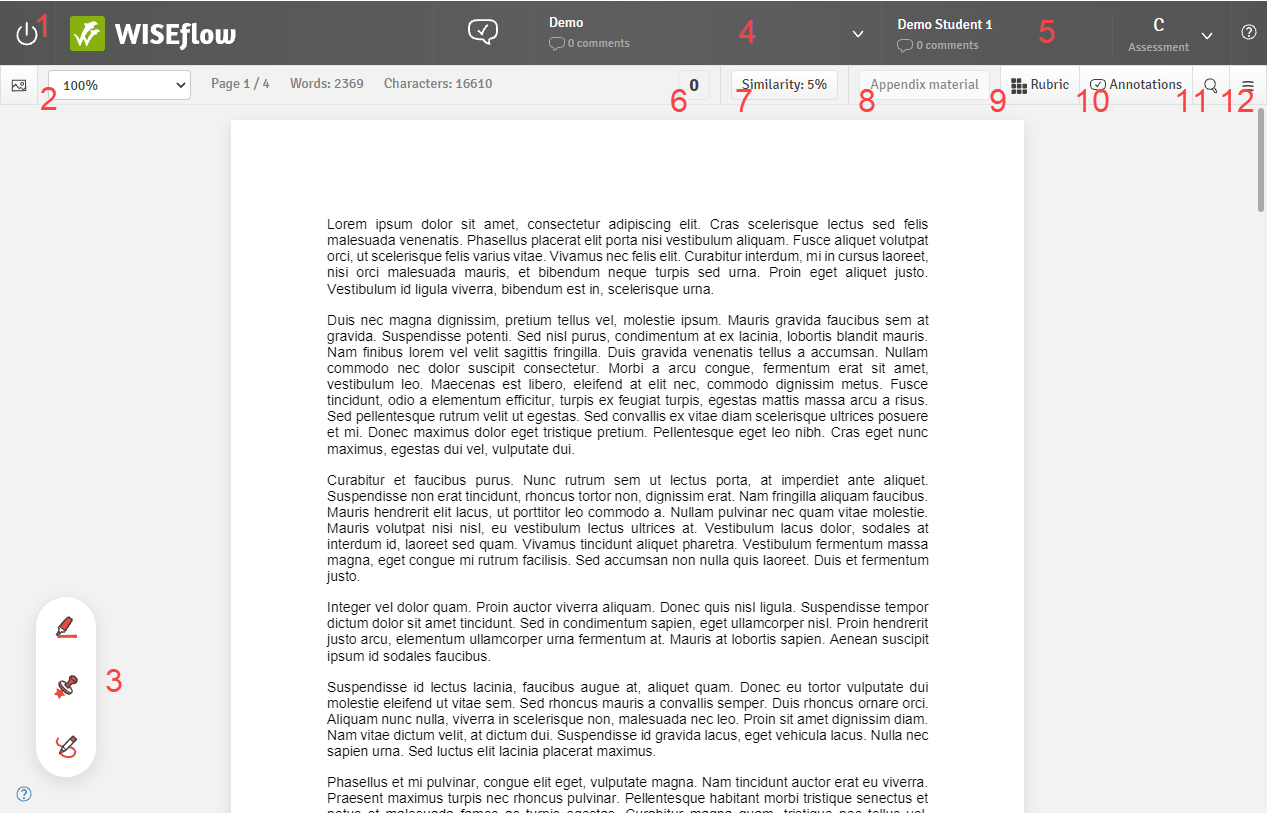
- Close the marking tool
- Submission overview tools as well as page, word and character count.
- Annotation tools
- Flow menu (view flow information, provide cohort feedback or switch between submissions)
- Participant menu (view cover sheet, provide paper-level comments, access shared summary, enter final grade)
- Tally if using marks with annotations
- Access similarity report
- Open appendix material
- Open rubric
- View annotations
- Search the submission
- Export submission with overlaid annotations
Submissions to a FLOWmulti will be presented in the marking tool as shown below:
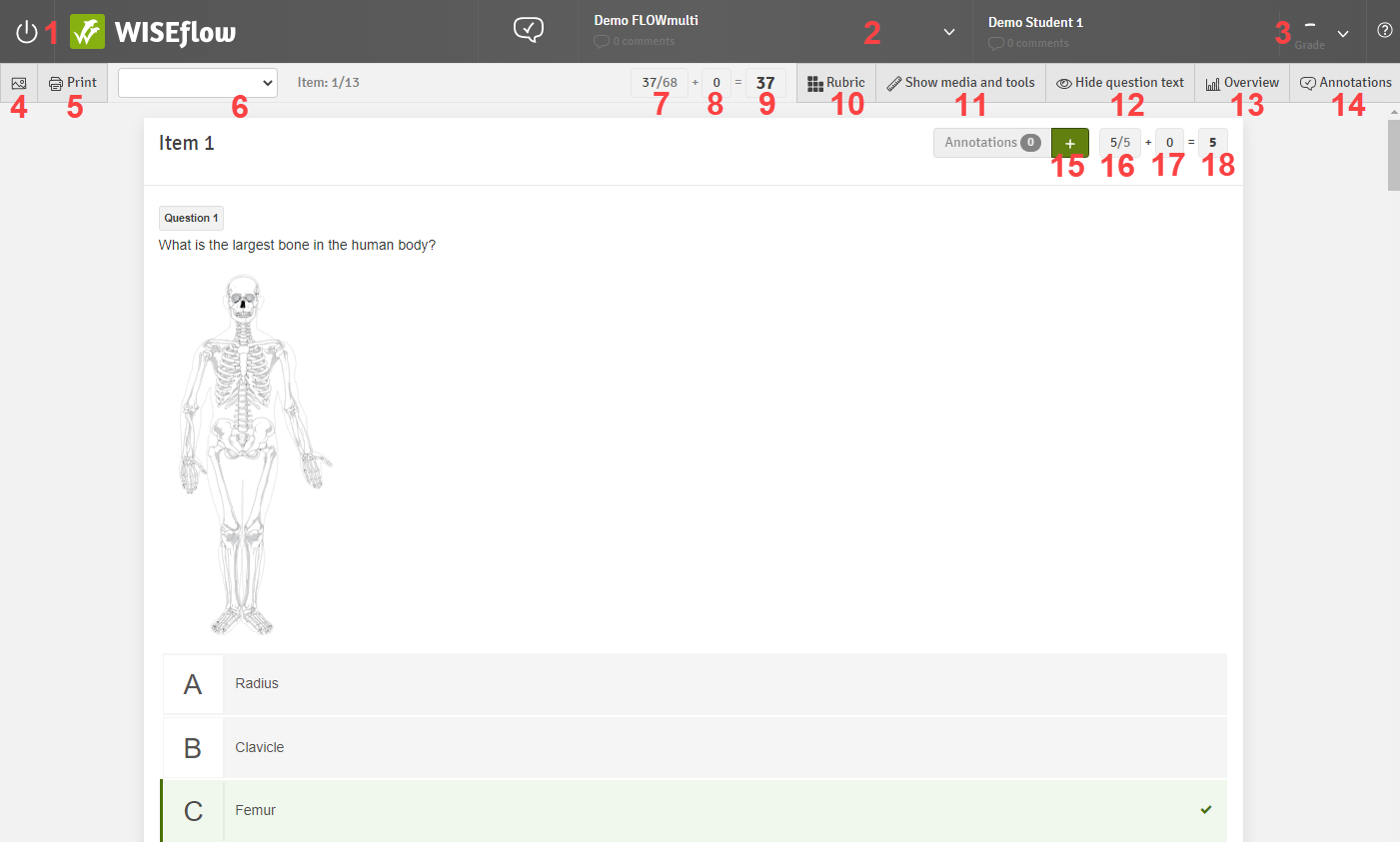
- Close the marking tool
- Flow menu (view flow information, provide cohort feedback or switch between submissions)
-
Participant menu (provide paper-level comments, access shared summary, enter final grade)
- Jump to individual items
- Generate a printout of the submission.
- Adjust the zoom level
- Total marks achieved by automatic scoring
- Total marks added by manual scoring
- Total marks tally
- Display rubric for the assessment process (not available for item-based marking)
- Show any media or tools that have been attached to an item/the assignment
- Hide the question text for a better overview of the answers
- Statistical overview of the submission
- View annotation summary
- Add annotations to the item
- Automatic score for the item
- Manual score for the item
- Total item score
Moving between submissions is possible in several different ways.
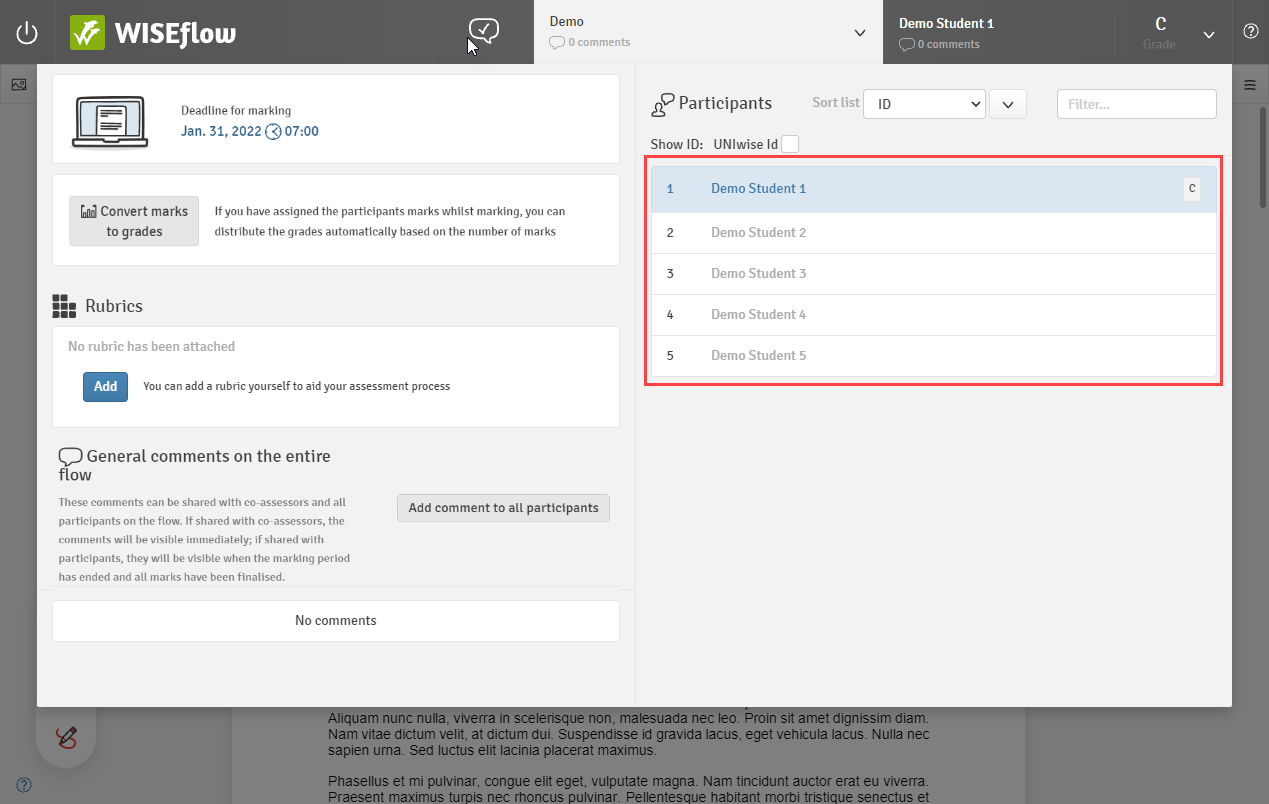
From the Flow Menu
The flow menu displays all the participants to which you have been assigned as an assessor and provides a quick way to move between each submission from inside the marking tool.
From the Flow Landing Page
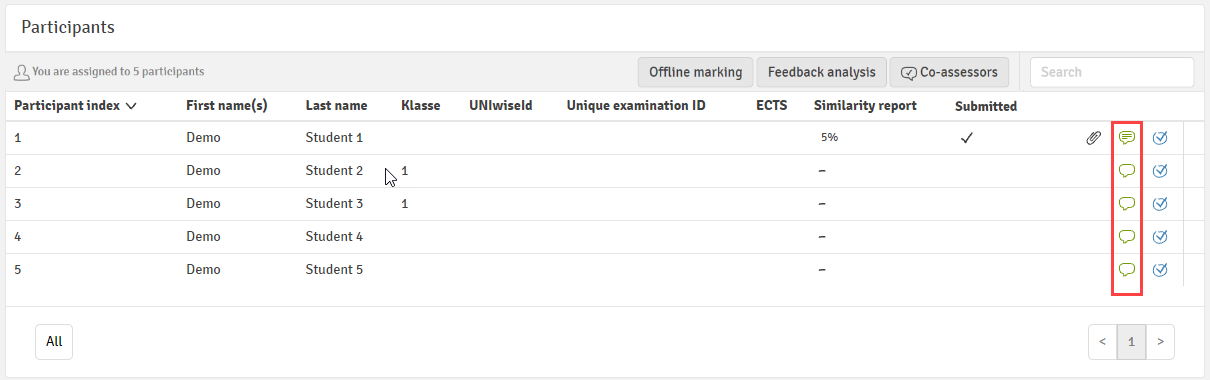
Closing the marking tool will take you back to the flow landing page from which you can also view a list of your assigned participants. Click the green speech bubble against any row to jump straight to the corresponding submission in the marking tool.
WISEflow has 3 annotations tools:
- The text highlighting tool:
- The stamp tool
- The freehand drawing tool
The annotation editor window
The annotation window associated with all three annotation tools is shown below.
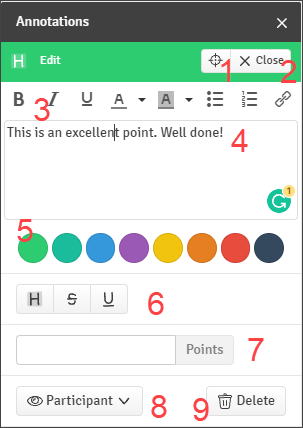
- Jump to the area in the document with which the annotation is associated
- Close the annotation editor window
- Text formatting tools
- Commenting area
- Change the colour of the comment box and overlay on the document
- Choose whether the document overlay displays as a highlight, strikethrough or underline (where the stamp tool is used this item will allow you to select the shape of the stamp)
- Associate marks with annotation (see next section of this article)
- Sharing settings (see final part of this article)
- Delete the annotation
Please note that there is no save button for annotations. Annotations are automatically saved.
Sharing on Individual Annotations
There are four possible options for sharing annotations:
- Private: Comments and annotations are visible only to the assessor.
- Share with participant: Comments and annotations are visible to the assessor and the participant (upon the release of grades and feedback) only.
- Share with co-assessor: Comments and annotations are visible to the assessor and any co-assessors that are also assigned to the same participant.
- Share with all: Comments and annotations are available to the assessor, and co-assessors that are also assigned to the same participant and the participant (upon the release of grades and feedback).
These options can be configured per annotation in order to offer maximum flexibility to assessors. To change the setting on a single annotation click the dropdown menu and select the groups you would like to share the annotation with.
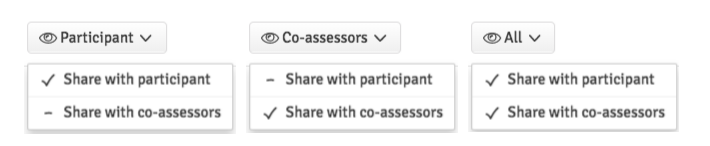
Please note that the default WISEflow behaviour is that comments are private unless the assessor decides to share them (only if a student has requested feedback).
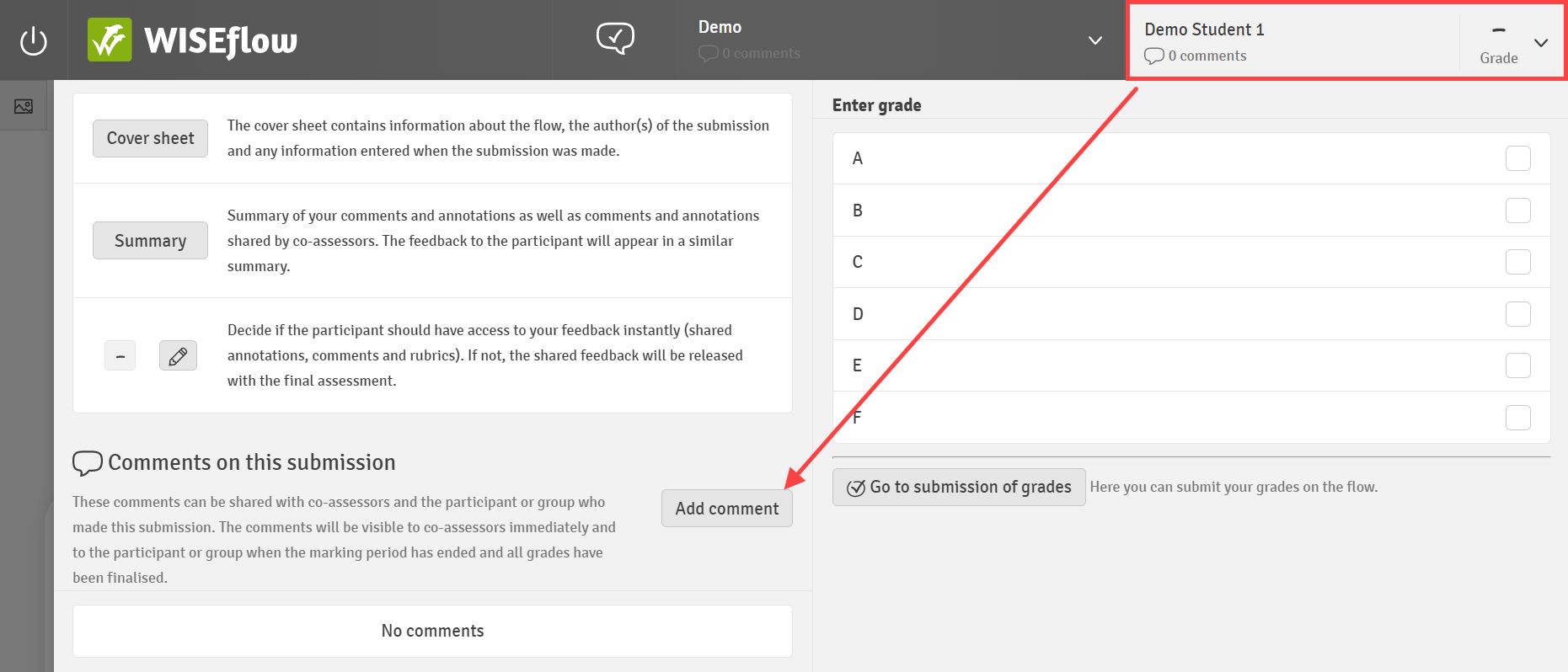
From inside the marking tool click the right-hand student menu in the page header where you will find grading and commenting tools for the current submission you are working on. Click the Add comment button under Comments on this paper. This opens the paper-level commenting tool which works in a similar way to the individual annotation tool.
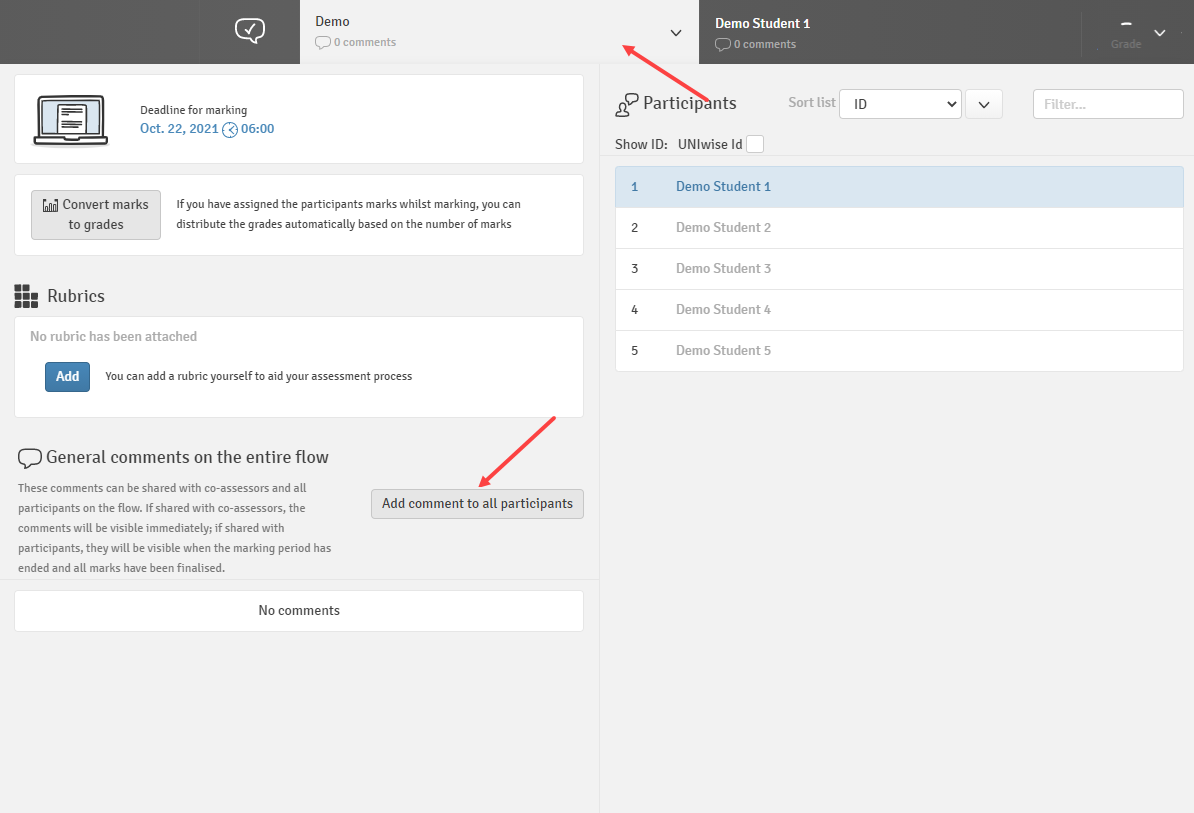
From inside the marking tool click the left-hand flow menu in the page header. This brings up a menu with the student list on the right and the flow information on the left. Click the Add comment to all participants button under General comments on the entire flow. This opens the cohort-level commenting tool which works in a similar way to the individual annotation tool.
WISEflow supports integration with the text similarity tool: Turnitin.
When text similarity is enabled on the flow, WISEflow sends submissions to the respective services and subsequently displays the returned matching percentage in the marking tool.
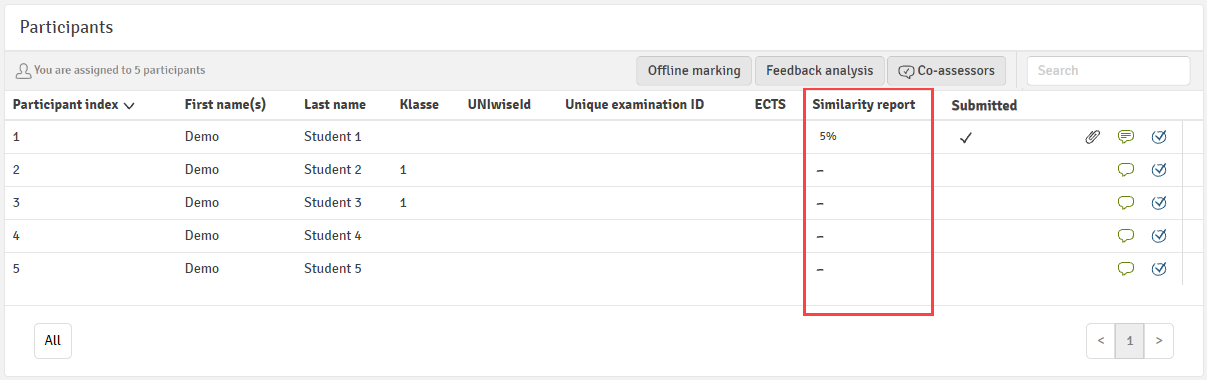
This is how a turnitin similarity report looks like:
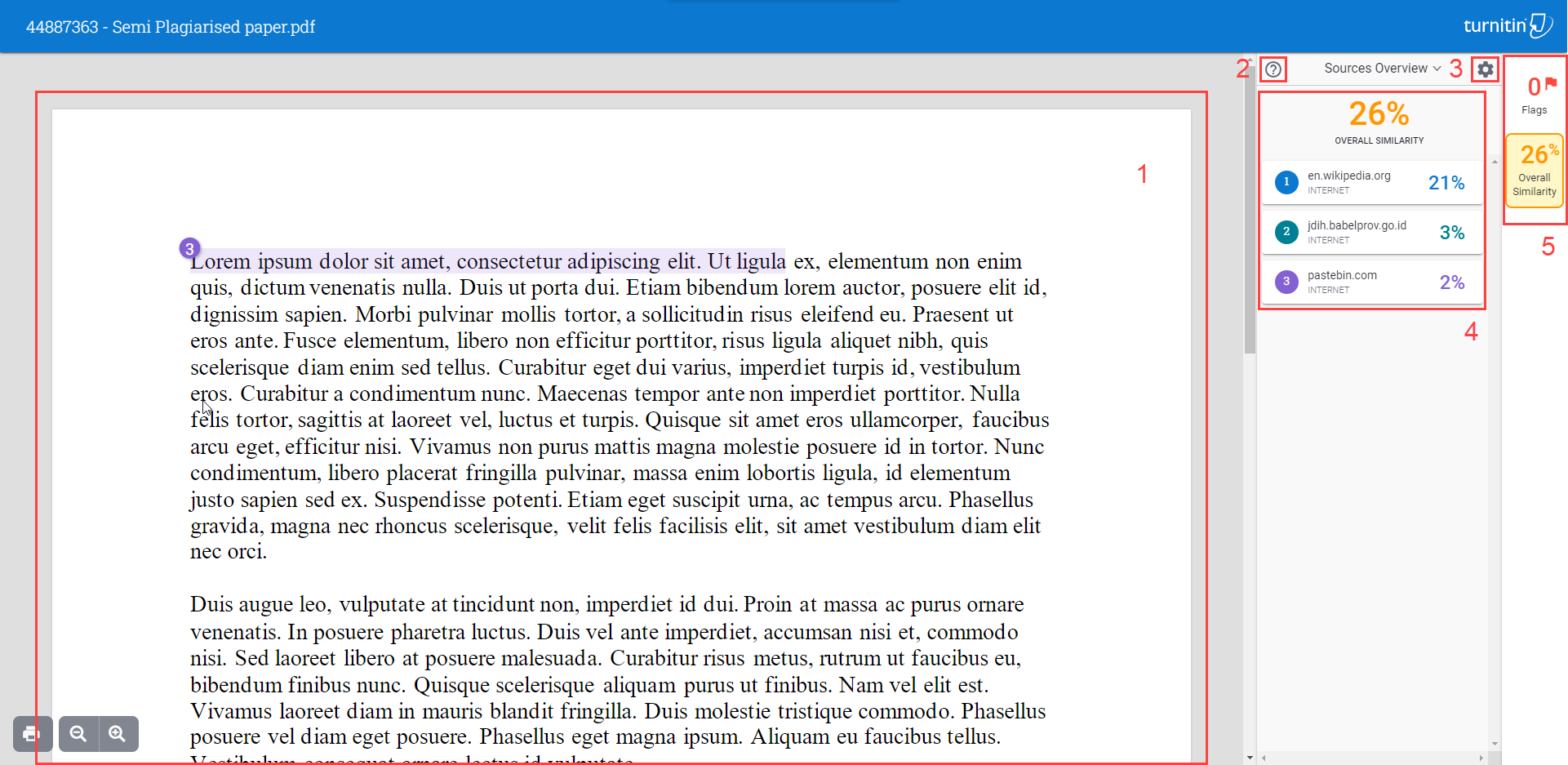
- The document viewer displaying the entire submitted document with similarity events and flags highlighted in the text
- Help menu: view the submission metadata, access the help centre or initiate a Turnitin tour
- Report settings: Options for what to include in the analysis
- Event overview: An overview of the sources matched or flags detected
- Similarity/flag toggle: Choose whether to view sources matched or flags detected in the event overview
Rubric-based marking is an advanced marking workflow available with all flow types.
Please contact the exams team at exams@beds.ac.uk in order to ensure rubric marking can be enabled, and please attend a authoring training session to learn how to create and set up rubric based marking.
WISEflow is designed primarily to be used in an online capacity. However, there are some circumstances where a continuous internet connection is not practical or possible for assessors. To cater for such situations WISEflow offers some offline features.
Submissions made to FLOWassign or FLOWlock can be downloaded in bulk in a single zip file and can include a grading spreadsheet or grade sheet. To build your offline marking package, select Offline marking button from the flow overview page.
Please ensure that once you are connected to the internet, please ensure that you transfer your marking back to WISEflow and submit the grades once done.
Once you have submitted your final grades as a marker, and your co-assessors have also submitted their final grades, the reviewer will then be able to reviewing all the marking and finalise grades.
Support & Feedback
- Technical Support: For technical assistance, please contact the exams team at exams@beds.ac.uk
- Training Session: We also offer live training sessions and drop-ins support to help you get the most out of WISEflow, please keep an eye out on Kalldius or our MS Exams Teams site for more information.
- Feedback: We value your feedback! Please email us at exams@beds.ac.uk know how we can improve this guidance page and the WISEflow platform.


